

Latest Version
Janne Pulkkinen
Tools
Linux
Free
com.github.Matoking.protontricks
Report a Problem
More About Protontricks Review: Fix and Tweak Linux Steam Games
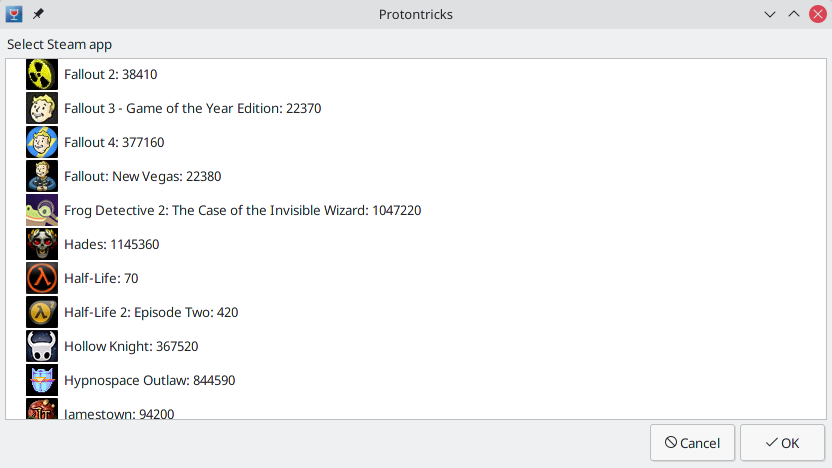
If you have ever tried running a Windows game on Linux only to find it crashes due to a missing media foundation library, a specific font, or an outdated DirectX component, the Protontricks Steam Play utility is the solution you need. Developed by Janne Pulkkinen, this open-source tool acts as a seamless wrapper around Winetricks, allowing you to apply custom configurations, DLL overrides, and system libraries directly to the Wine prefixes managed by Steam Play (Proton).
Why the Protontricks Steam Play Utility is Essential for Linux Gamers
Proton has revolutionized Linux gaming, but it is not always a perfect out-of-the-box solution. Many older or highly specific titles rely on proprietary, closed-source runtime libraries that Valve cannot legally package with Proton. The Protontricks Steam Play utility solves this by giving you direct command-line or graphical access to each game's virtual Windows environment.
Key Features and Capabilities
- Run Winetricks Commands Easily: Apply specific tweaks, install fonts, or register DLLs for any Steam game in your library without manually navigating complex Proton prefix directories.
- Launch External Executables: Run trainers, mod managers, or configuration utilities inside the exact same Proton prefix as your game to ensure seamless integration.
- Streamlined Troubleshooting: Quickly bypass common launch errors caused by missing dependencies like .NET Framework, Visual C++ redistributables, or DirectPlay.
Managing Steam Libraries on Secondary Drives
Modern game libraries can be massive, forcing many Linux gamers to store titles across multiple storage drives. When using the Flatpak version of this tool, you may need to manually grant permission to access these external directories. You can easily resolve this by executing a simple Flatpak override command in your terminal to point the application to your custom Steam library path.
Our Verdict
For anyone serious about gaming on Linux, the Protontricks Steam Play utility is an indispensable addition to your software toolkit. It transforms frustrating compatibility hurdles into simple, solvable tweaks, ensuring your favorite classic and modern Windows titles run smoothly. If you are ready to take full control of your gaming prefixes, head over to the official Flathub store page to learn more and install the utility on your system.
Rate the App
User Reviews














Popular Apps










Editor's Choice